Product support
Get the morning back on track.
Fast answers for alarm access, repeat days, personal videos, and the wake-up task.
Find a quick fix06:30
Start here
Three checks solve most alarm issues.
- 01Open Profile & Settings
Confirm that Alarm permission shows “Allowed.” Camera and Photos are needed only for video actions.
- 02Open the alarm
Check the time, repeat days, enabled status, selected goal, and content setup.
- 03Run a short test
Set an alarm a few minutes ahead and keep the app installed while you verify the full wake-up flow.
Answers
The details, without the runaround.
Choose the issue that matches what you see in the app.
01My alarm did not appear
Open Profile & Settings and confirm that Alarm permission is allowed. Then open the alarm and verify that it is enabled and includes the correct repeat day.
For a reliable release check, also test the final build on a physical iPhone while the screen is locked.
02I cannot select my video
Allow Photos access when prompted and choose a video under two minutes. If access was previously denied, change it from iOS Settings and return to the app.
03I cannot record a video
Camera access is required for the picture and microphone access is required for sound. Both can be reviewed in iOS Settings.
04How does “Done” unlock?
For a message alarm, “Done” unlocks after the reading duration you selected. For a video alarm, it unlocks after the selected motivation video reaches the end.
05How do I edit or delete an alarm?
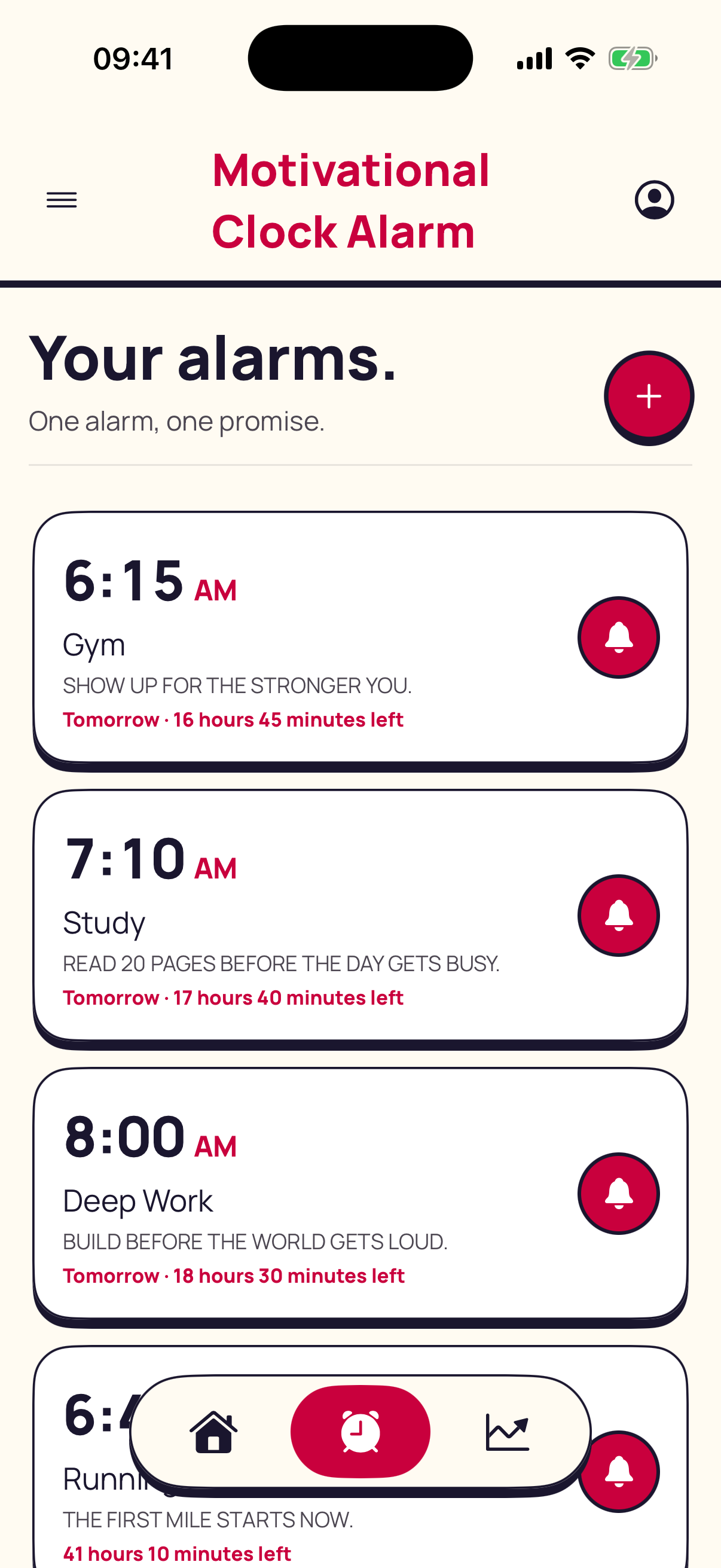
Open the Alarms tab and select the alarm. You can change its time, goal, content, repeat days, snooze behavior, or enabled state. The delete action is available in the alarm details.
06Where are my personal videos stored?
Videos selected or recorded for an alarm stay in the app’s local storage on your iPhone. Read the privacy policy for more detail.
Still need help?
Send the useful details first.
When contacting the developer through the App Store listing, include your iPhone model, iOS version, app version, and the exact step where the problem occurred. Never send a personal motivation video.
Review privacy details